
Getting Started
Here's a step-by-step guide on how to register with us and book in for your first class. If you have any issues at all, please don't hesitate to contact us.
Group Classes
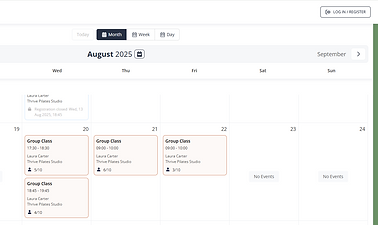
02
Sign Up
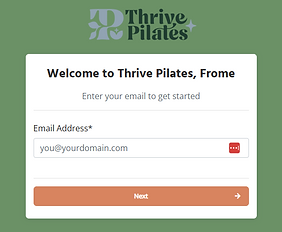
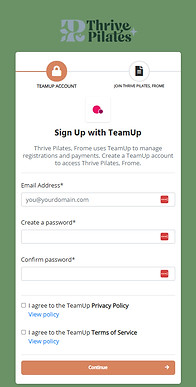
👉Enter your email address and click next. You'll then be prompted to set a password.
Please note: If you've ever used Team Up in the past (for example with another gym or fitness class) you may already have an account. If this is the case you'll be asked for your password. If you can't remember your login details, there is a forgotten password option to reset your account.

03
Enter Your Details
You will be asked if you are setting up a child or other dependent - click no to continue.
👉 Enter your personal details.
👉 If you've been referred by another Thrive Pilates member, enter their referral code in the box at the end, otherwise leave it blank and click next to continue.
04
Complete New Joiners Forms
You're now registered - Welcome to the Thrive Pilates Community! You should shortly receive an email from us to confirm your registration.
👉 You will also have received an email asking you to confirm your email address. Please make sure you do this. If you've not received this, please check your account and update as necessary.
You'll now need to complete some important new joiners forms so that we can keep you safe when exercising.
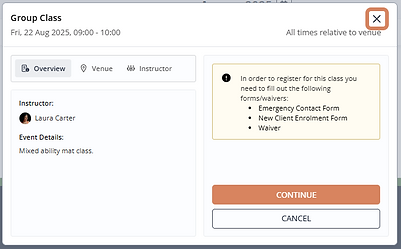
If you started your registration by choosing your first class you'll be able to just click 'continue' to progress to the next step. Otherwise, simply select the class you wish to book from the calendar now, and then click continue.
There are things you'll need to complete please:
1. Waiver - this is some important information about our classes that we want to ensure you have read and understood.
2. Emergency contact details - please provide us with details of who to contact in the unlikely event of an emergency.
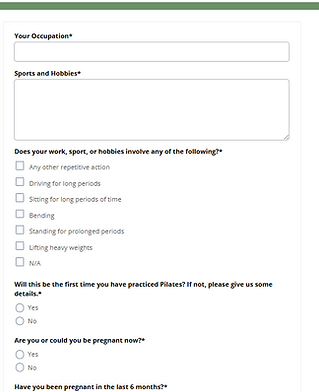
3. New Client Enrolment Form - This is to help us understand any injuries or medical conditions which may affect your ability to exercise. It helps us to ensure that the moves are suitable for you and to help you get the best from your classes.


05

Complete Your Booking
To complete your booking you'll need to select a membership option.
👉 Select View Registration Options
👉To use your £5 trial credit, choose this option.
👉 Enter your payment details and complete your purchase.
🥳
You're all booked!
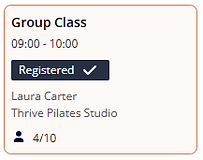
You'll receive an email to confirm your booking shortly. You'll also be able to see on the calendar that there will be a little dark grey box to indicate that you are registered for that class.
We can't wait to meet you!
If you have any questions ahead of the class, please don't hesitate to get in touch.
1:1 Private Sessions



👉 Choose 1:1 Appointment and 'Book Now'.
👉 Choose the most suitable start time for you from the times available. Time slots start every 15 minutes to give you maximum flexibility.
Please note: Your first 1:1 session will usual last about 1 hour 15 minutes.
Don't see a time that suits? Get in touch and we'll see what we can do.
02
Sign In or Sign Up
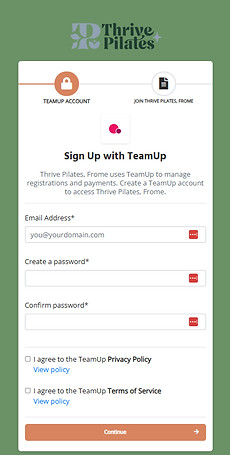
Once you've selected your chosen start time, you'll need to login or sign up.
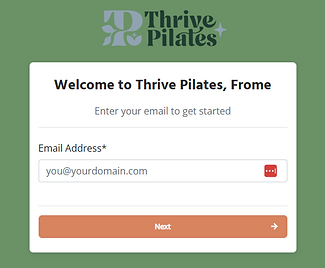
👉Enter your email address and click next.
👉 If you already have an account with us, you'll be invited to enter your password, otherwise you'll be prompted to create a password for your new account.
Please note: If you've ever used Team Up in the past (for example with another gym or fitness class) you may already have an account. If this is the case you'll be asked for your password. If you can't remember your login details, there is a forgotten password option to reset your account.
If you already have an account with us, you can skip ahead to step 05 below once you've logged in!
03
Enter Your Details
You will be asked if you are setting up a child or other dependent - click no to continue.
👉 Enter your personal details.
👉 If you've been referred by another Thrive Pilates member, enter their referral code in the box at the end, otherwise leave it blank and click next to continue.
04
Complete New Joiners Forms
You're now registered - Welcome to the Thrive Pilates Community! You should shortly receive an email from us to confirm your registration.
👉 You will also have received an email asking you to confirm your email address. Please make sure you do this. If you've not received this, please check your account and update as necessary.
You'll now need to complete some important new joiners forms so that we can keep you safe when exercising.
There are things you'll need to complete please:
1. Waiver - this is some important information about our classes that we want to ensure you have read and understood.
2. Emergency contact details - please provide us with details of who to contact in the unlikely event of an emergency.
3. New Client Enrolment Form - This is to help us understand any injuries or medical conditions which may affect your ability to exercise. It helps us to ensure that the moves are suitable for you and to help you get the best from your classes.


05
Complete Your Booking
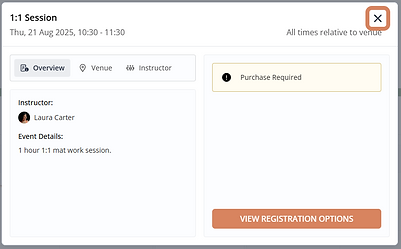
To complete your booking you'll need to select a membership option.
👉 Select View Registration Options
👉There are a number of options available - you can pay for a One-Off session, buy a pack of either 5/10 sessions, or purchase a recurring pay-monthly membership if you're looking for one session a week. Click on the link below for more details about each of the options available. If you need help choosing the right option, please don't hesitate to get in touch.
Pro tip: If you're a on a pay-monthly membership for group classes you get 10% off 1:1 bookings. Contact Us to get your unique discount code.
👉 Once you've chosen your preferred membership option, enter your payment details and hit 'Purchase'.
🥳
You're all booked!
You'll receive an email to confirm your booking shortly. You'll also be able to see your booking in your account under 'Registrations'.
We can't wait to meet you!
If you had any issues booking, any concerns, or any questions ahead of your session, please don't hesitate to get in touch. We're here to help!
Gift Certificates
You can redeem your gift certificate against the values of 1:1s or group classes.
I received my gift certificate via email
If you received your gift certificate via email, you'll have unique gift certificate redemption link in your email. Once redeemed, the entire gift card amount will be added to your account balance and can be used towards group classes, 1:1 sessions, or any membership options. You can view your account balance by navigating to the “My Account” section and clicking on your name on the left, under the Profile area. When you next make a purchase you will be offered the opportunity to use your available account credit.
I received a paper gift certificate
If you received a paper gift certificate you'll have a unique code to use to redeem your gift certificate. This is redeemable against a single purchase. To use your unique code simply enter the code into the 'discount code' box on the purchase screen and your full gift certificate value will be redeemed against the purchase.
If you'd like to use your gift certificate over two or more purchases please get in touch with me, let me know what your unique gift certificate code is and I will be able to allocate the full value of your gift certificate to your account credit. You will need to have registered your account first please. Once your gift card value has been allocated to your account credit you will be able to use it when you next make a purchase.
If you have any questions or any issues with redeeming your gift certificate please get in touch with me - I'm always happy to help!
I look forward to welcoming you to the Studio!